

There is a version of wedding planning where the money lives everywhere at once. A deposit receipt in your email, a note on your phone, a rough total your fiancé mentioned after a call with the caterer, and a nagging feeling that you have already spent more than you meant to. Ask most couples what their wedding is actually costing them so far, and the honest answer is a shrug.
A budget tool fixes this by giving every euro one home. This guide walks the whole flow: setting your total, splitting it the way wedding experts recommend, logging expenses as you book each vendor, and watching spent, remaining, and cost per guest update on their own. It is part of your event already, nothing extra to buy, and it takes about five minutes to set up.
The short version
- Set one total budget for the wedding, in the currency you plan in.
- Apply the expert split in a click, categories sized the way real weddings typically spend.
- Make the categories yours: rename them, recolor them, add your own, or remove one you do not need.
- Log each expense as you book a vendor, and its status, planned, part-paid, or paid, tracks itself.
- Watch total spent, what is still owed, remaining, and cost per guest update the moment you add something.
Before you start
You will need your event created and your guest list started, since cost per guest divides your spending by the guests you have added so far. If you have not built your list yet, add a few names first, then come back. Budgeting is already part of your event, so there is nothing to buy or turn on.
Step 1: Set your total budget
Open Budget from your event, and you land on the Overview tab, where total spent sits against your total budget and a currency picker sits right beside it. Laylaty prices your plan in EUR, but your wedding budget can run in whichever currency you actually spend in, so pick it here first and every figure on the page follows.
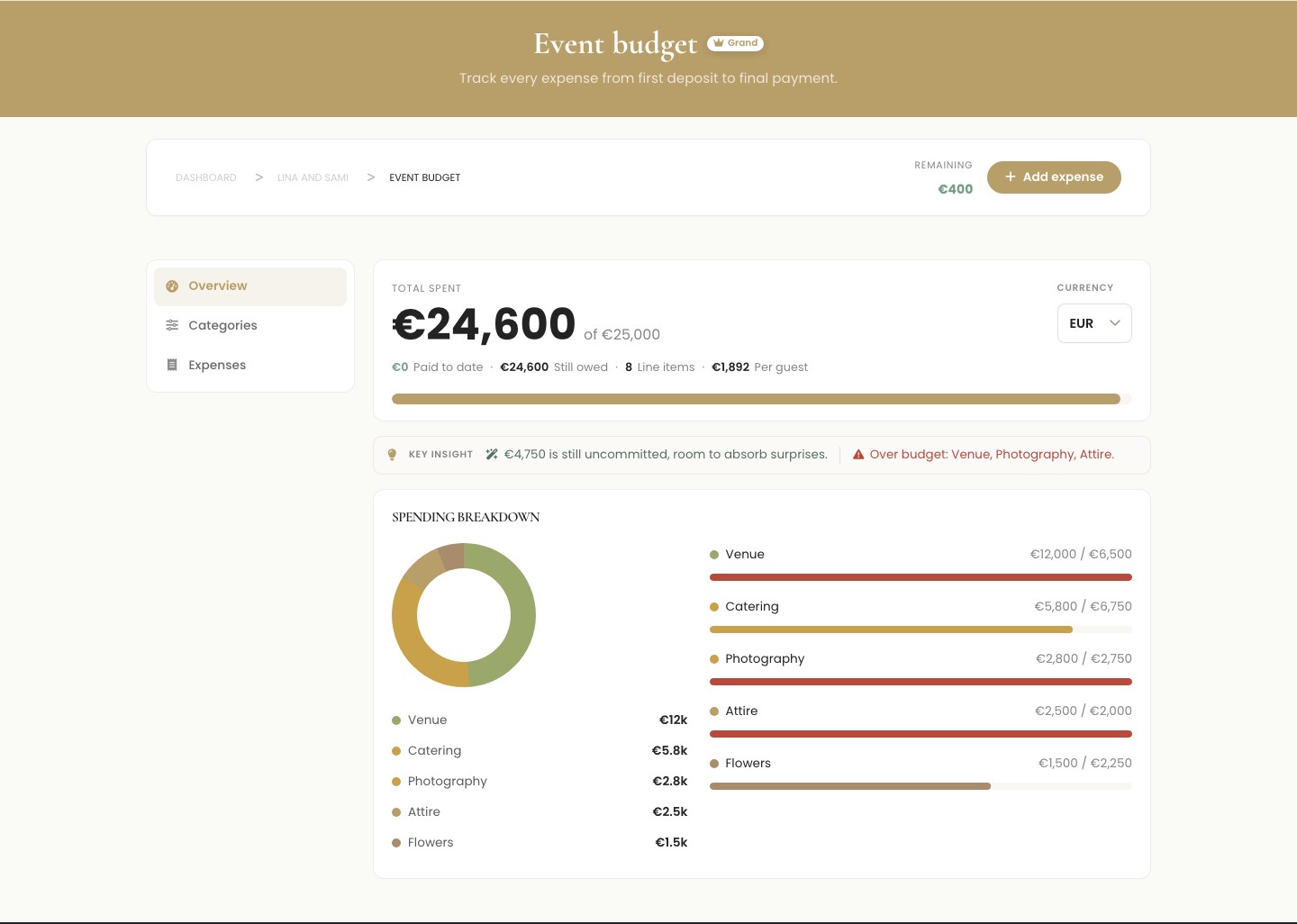
To set the total itself, the number you do not want the wedding to cross, switch to the Categories tab and tap the pencil next to Total budget.
Tip
Round your total up slightly rather than down. A little headroom absorbs the small surprises every wedding has, without feeling like you went over the moment they show up.
Step 2: Apply the expert split
Guessing how to divide a budget across a venue, catering, and a dozen other costs is one of the hardest parts of planning, so you do not have to start from a blank page. Open the Categories tab and tap Apply expert split. Laylaty fills in a target for each category based on what real weddings typically spend, catering and venue take the largest shares, roughly a quarter each, then photography, flowers, and attire scale down from there.
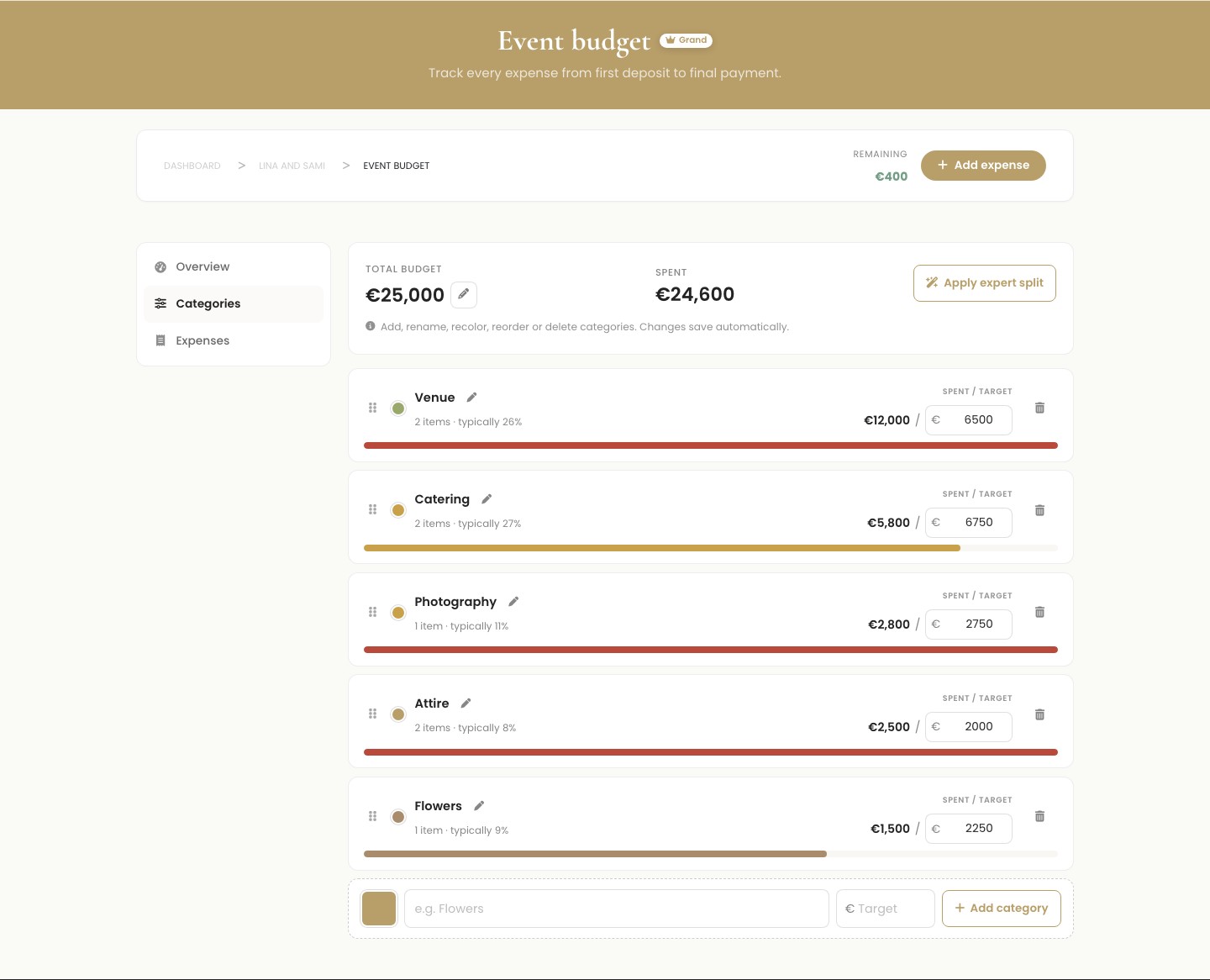
A category is simply a bucket for a kind of cost, venue, catering, photography, and so on. Its target is what you have decided to allow it, while spent is what you have actually committed by logging expenses into it. The two are meant to be compared, not to always match, a category can run over its target while your wedding as a whole still comes in under budget, which is exactly what a healthy budget looks like in practice.
Tip
Apply the expert split early, before you have booked much. It gives you a realistic target to negotiate against instead of a number you invented.
Step 3: Make the categories yours
The split is a starting point, not a rule. Rename any category to match how you actually talk about the wedding, give it a color, drag it into the order that makes sense to you, or add one entirely of its own, a videographer, a henna night, a rehearsal dinner. If a category no longer applies, delete it, and Laylaty asks where its expenses should move first, so nothing gets lost.
Every change here saves itself the moment you make it, no separate save button to remember.
Step 4: Log an expense as you book a vendor
As you actually book something, tap Add expense from anywhere on the page. Give it a name, the vendor if you have one, and the category it belongs to.
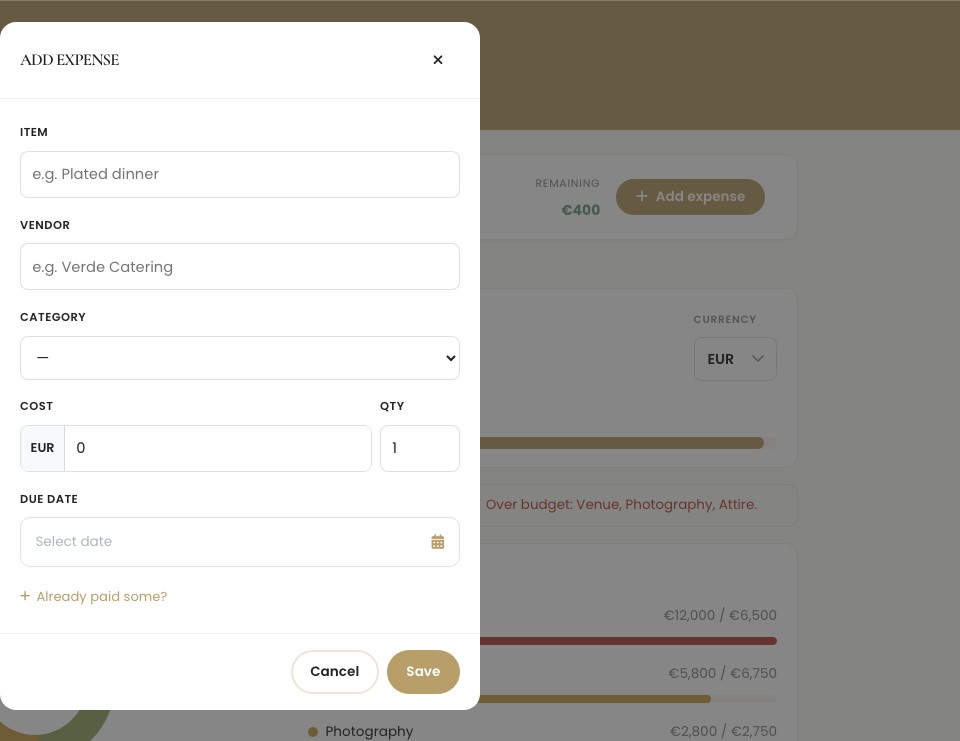
Enter the cost and, if it is priced per unit, a quantity, say a per-head catering price times your guest count, and Laylaty multiplies it for you. If you have already paid something toward it, tap Already paid some? to record the deposit. You never have to set the status yourself: an expense with nothing paid shows as Planned, one with a deposit down shows Part-paid, and one paid in full shows Paid, all worked out automatically from the numbers you entered.
Tip
Log an expense the moment you pay a deposit, not when the final invoice arrives. Your still-owed total stays honest, and you will never be caught off guard by a balance you forgot was coming.
Step 5: Watch your spending update itself
Back on the Overview tab, this is where it all lands. Total spent, what you have paid so far, what is still owed, and cost per guest all update the instant you save an expense, no recalculating by hand.

Cost per guest is your total spending divided by the guests on your list so far, the number that tells you whether adding five more names to the guest list is a small decision or a real one. Below the totals, the spending breakdown shows each category's share as a donut and a set of bars, so you can see in one glance which parts of the wedding are eating the most, and which still have room.
A key insight appears automatically above the breakdown too: it tells you when you are comfortably under budget, when a category or two has run past its target, or when the wedding as a whole has gone over, so you do not have to do that math yourself.
Step 6: Stay under budget
Between the expert split and the live totals, staying under budget is mostly a matter of checking in rather than tracking everything by memory. If a category is running hot, its bar turns a warmer color so it stands out before it becomes a surprise. If you renegotiate with a vendor or decide to spend less somewhere, adjust that category's target and everything above it recalculates instantly.
Make it your own
A few dials so the budget works the way you plan:
- The total budget and currency, set once and editable any time your numbers change.
- The expert split, apply it once for a realistic starting point, then adjust any category by hand.
- Categories, rename, recolor, reorder, add your own, or delete one and move its expenses first.
- Expense details, vendor, due date, and a deposit are all optional, add them only when you have them.
Frequently asked questions
Does the budget tool cost extra?
No. Budgeting is part of your event from the moment you create it, alongside your guest list and invitations. There is nothing to unlock.
What is the expert split based on?
Typical spending patterns for a wedding, catering and venue are usually the two largest shares, followed by photography, flowers, and attire, then smaller categories like stationery, cake, transport, and favors. It is a realistic starting point, not a rule, and every target stays fully editable.
What is the difference between spent and paid?
Spent, also called committed, is the full cost of everything you have logged, whether or not you have handed over the money yet. Paid is what has actually left your account. The gap between the two is what is still owed, so you always know what is coming due.
Can I track my budget in a currency other than euros?
Yes. Your Laylaty plan is billed in euros, but your wedding budget can run in the currency you actually spend in, and every figure on the page follows it.
What happens if I go over budget?
Nothing breaks. Laylaty tells you plainly, in the key insight at the top of the page, and shows you which categories pushed it there, so you can decide where to pull back with real numbers in front of you instead of a guess.
Ready to see what the wedding is really costing?
Open Budget, set your total, and apply the expert split. The rest fills itself in as you book.