

There is a small, specific panic that almost every couple meets a few weeks before the wedding. The invitations went out ages ago, the day is getting close, and you still cannot say, hand on heart, how many people are actually coming. One cousin replied on WhatsApp, an aunt told your mum in person, a few said "maybe," and a handful have simply gone quiet. As one bride put it, it is too easy to think you will reply later, and then, thirty seven emails later, you forget.
An RSVP is just the polite old phrase for "please reply," and collecting RSVPs online fixes this by giving every reply one home. This guide walks the whole thing end to end: creating your event, inviting your guests, what they see on their phone, how they answer, and how you watch the count come together. Along the way it explains what each option is for, and how to set it up the way you want. It takes about ten minutes.
The short version
- Everything lives in one event: your guest list, your invitations, and every reply.
- Each guest gets a real invitation, not a bare form, in their own language if they prefer.
- They answer one question, "will you attend," and add their plus-ones and dietary needs as they go.
- You watch attending, pending, and declined update live, and nudge only the people who have not answered.
- Almost every part is yours to tailor: the deadline, plus-ones, the card, the languages, and more.
Before you start: create your event
If you have not made your event yet, this is the first step, and it takes a minute. Give it a name, usually the couple's names, choose the kind of celebration, and set the date.
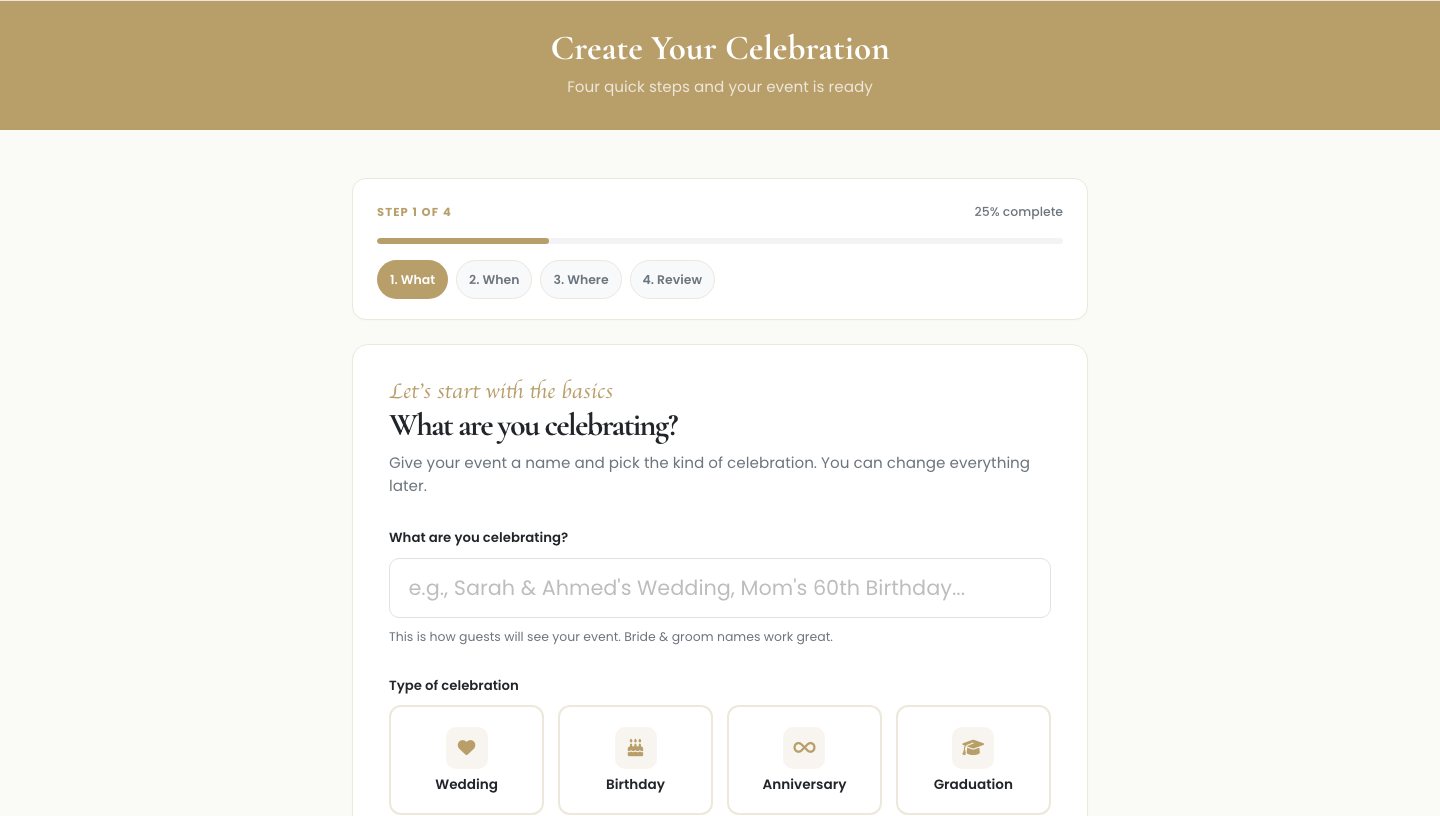
Do not overthink this first pass. You can change the name, date, and details later, so it is easy to start now and refine as plans firm up.
Step 1: Build your guest list
Open your event and go to the guest book. This is home base: every guest, the group they belong to, and whether they are on an invitation yet. Keeping everyone in one list, rather than scattered across your contacts and a paper pad, is the whole reason an accurate final count becomes possible.
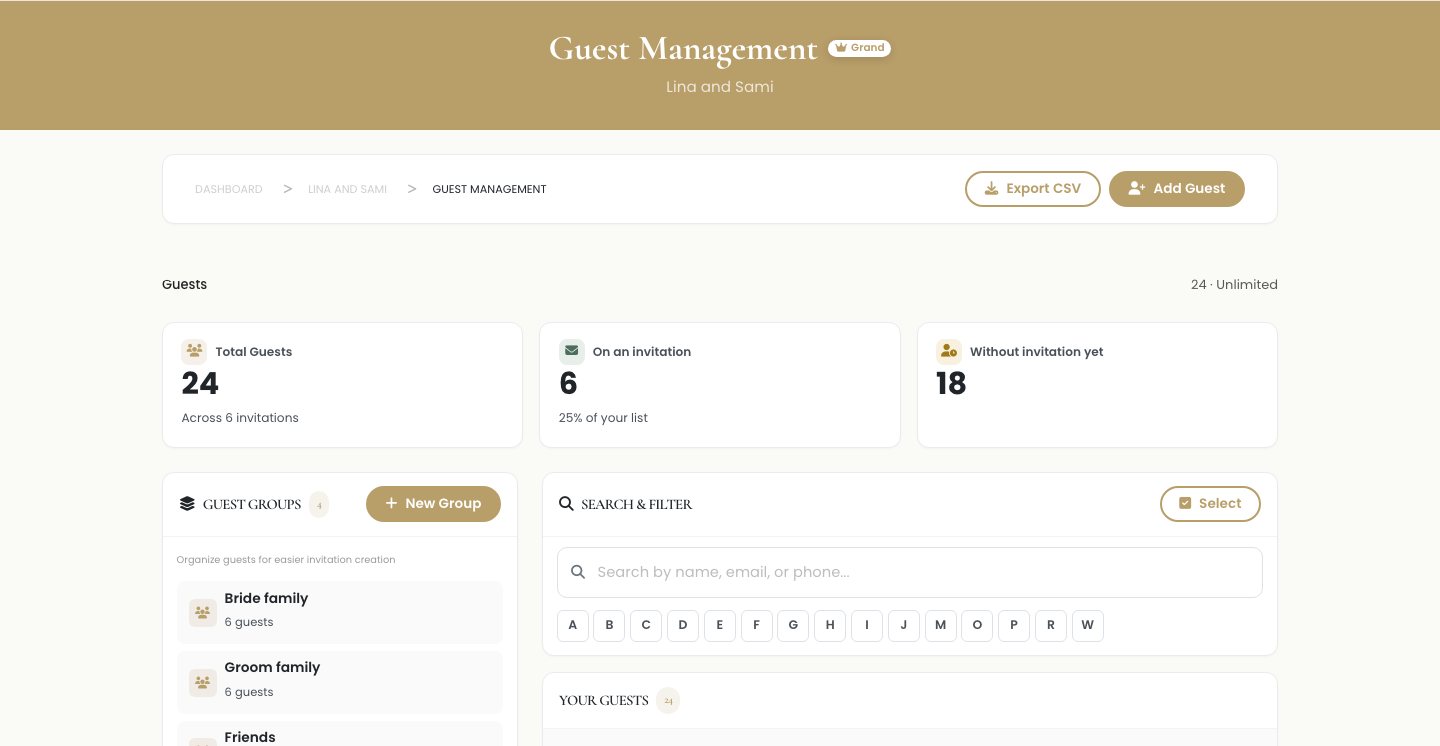
You do not have to finish the list in one sitting. Add a few names now, come back and add more later.
Step 2: Add your guests, and put them in groups
Add people one at a time, or paste a list you already keep in a note or a spreadsheet. As you go, drop each guest into a group. A group is simply a label, like bride's family, groom's family, or work friends.
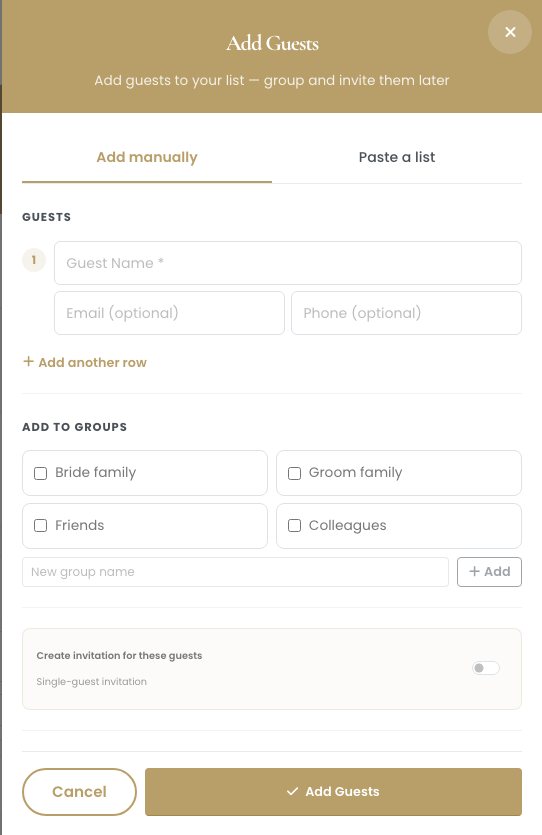
Groups are worth the small effort. Later you can invite or nudge a whole group in one action instead of ticking names one by one, and you can see at a glance which side of the family has replied. You can rename a group, add your own, or move a guest between groups at any time, so the list bends to how you actually think about your people.
Tip
Make a group for the guests you are inviting to the evening only, so you can send them a different invitation from the daytime crowd without keeping two lists.
Step 3: Create your invitations and send them
When the list is ready, create the invitations. Here you have a choice worth understanding. A personal link is unique to one guest, so their reply is tied to them. A shareable link is a single link anyone can open, handy for a casual gathering.
For a wedding, personal links are the ones that keep your count clean and stop a stranger from replying to a link that got forwarded around. This is also where you can make the invitation your own: choose a card design, add your photo and colours, and set an RSVP deadline, the date after which the form closes, so guests know when you need an answer by.
Tip
Set your RSVP deadline three to four weeks before the wedding. That gives you time to chase the stragglers, give final numbers to your caterer, and finish the seating without a last-minute scramble.
Step 4: What your guests actually see
This is the part most tools get wrong. Your guest does not open a plain form. They open a real invitation on their phone, your names, the date, the venue, laid out properly.
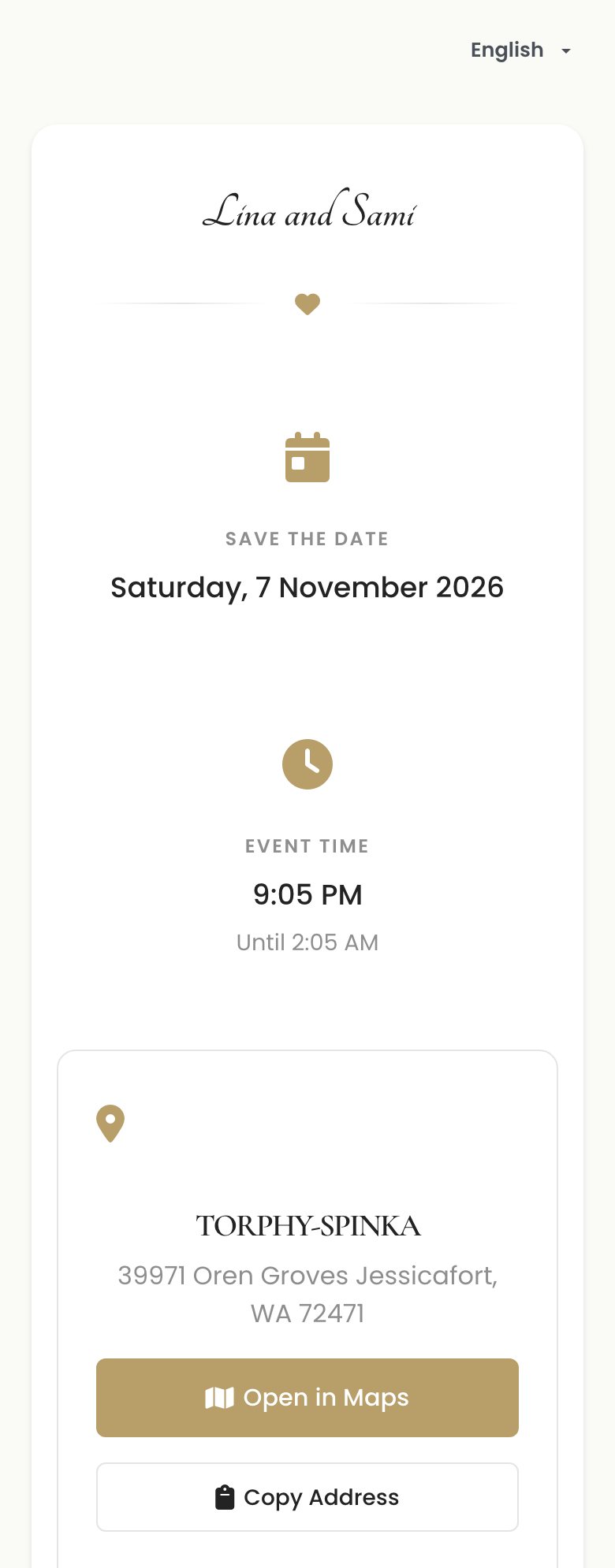
It matters more than it sounds. A guest who receives a proper invitation is far more likely to reply than one handed a bare form. Guests can switch the language in the corner, so relatives who read Arabic or French see the whole thing in theirs, and you decide which languages to offer.
Step 5: How your guests reply
When they are ready, they answer one clear question: will you attend. A tap for yes, a tap for no. If you allowed plus-ones, they choose how many they are bringing right here. A plus-one is the extra guest someone brings along, a partner, a friend, or a child.
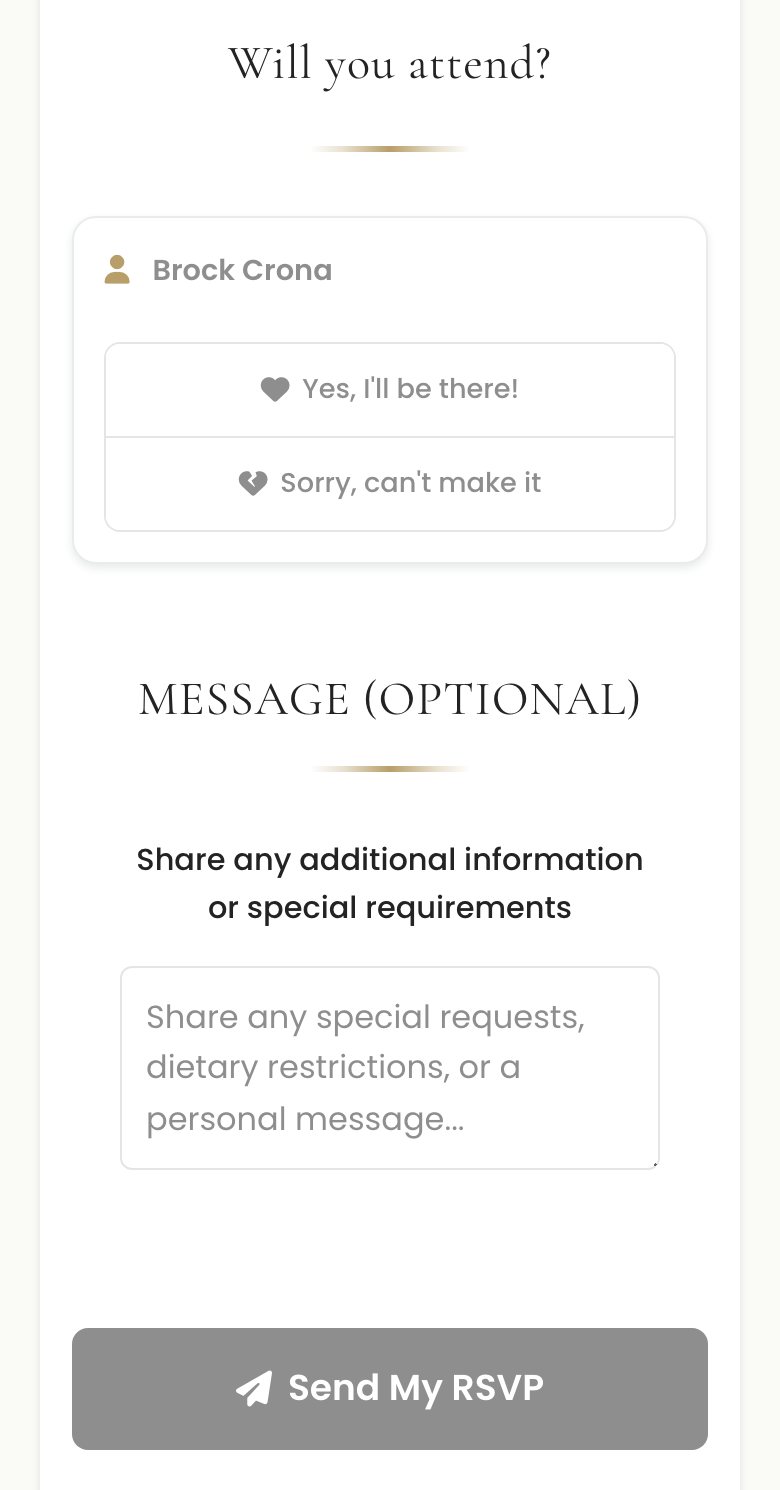
Letting guests declare their own plus-ones keeps your headcount honest instead of you guessing who is bringing whom. You decide whether plus-ones are allowed at all, and cap how many each guest can bring, say up to two, so a single invite does not quietly become a table of five. Guests can add a dietary note at the same time, which your caterer will thank you for. The moment they tap send, they see a thank-you, so the reply is done and off their mind, with no wondering whether it went through.
Step 6: Watch the replies come in
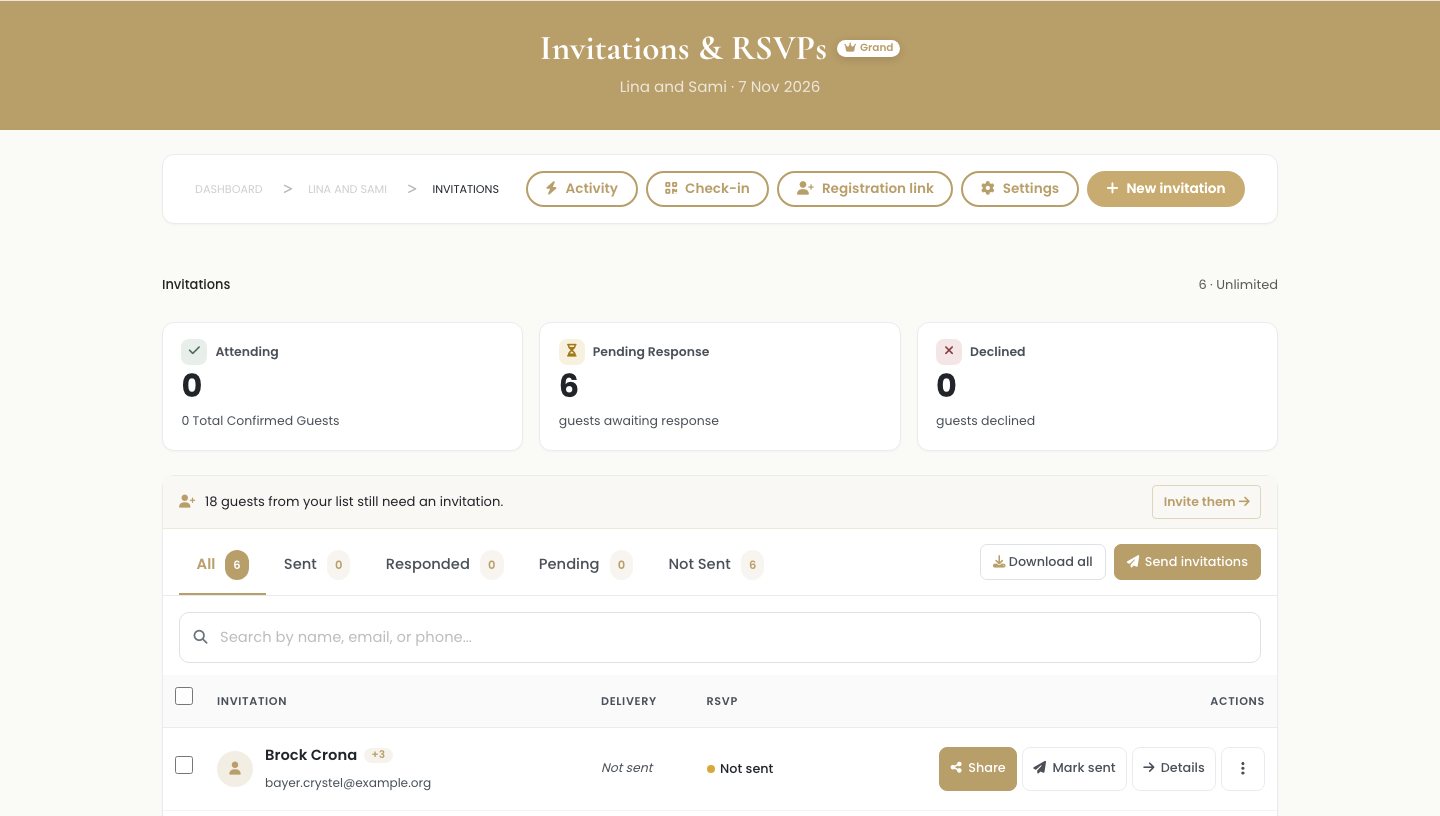
On your side, this is where it all lands, on your Invitations and RSVPs page. Three cards keep the running score, attending, pending, and declined, and they update on their own as guests answer. This is the count you could never quite pin down before, now live and in one place. The tabs just below let you jump to Responded or Pending in a tap, so you can see exactly who still owes you an answer.
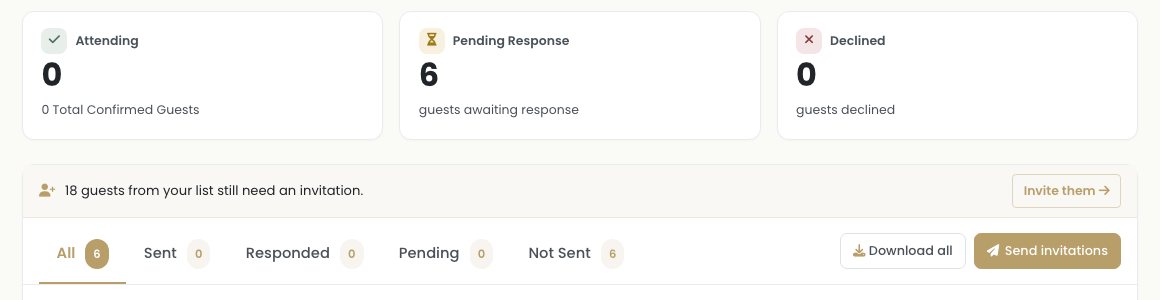
From here you nudge only the people who have not answered, so you are not pestering the ones who already replied. One honest note: expect a few no-shows even among the guests who said yes. That is completely normal, so leave a little headroom rather than catering to the exact number.
Step 7: On the day, check everyone in
Check-in happens on your phone at the door, because scanning uses the camera. Open the check-in screen, tap Scan a Pass, and point your camera at the QR code the guest shows from their invitation, the little square barcode a camera can read. It marks them, and everyone in their party, as arrived. No camera to hand, or working from a laptop instead? Search the confirmed list by name and check them in with a tap.
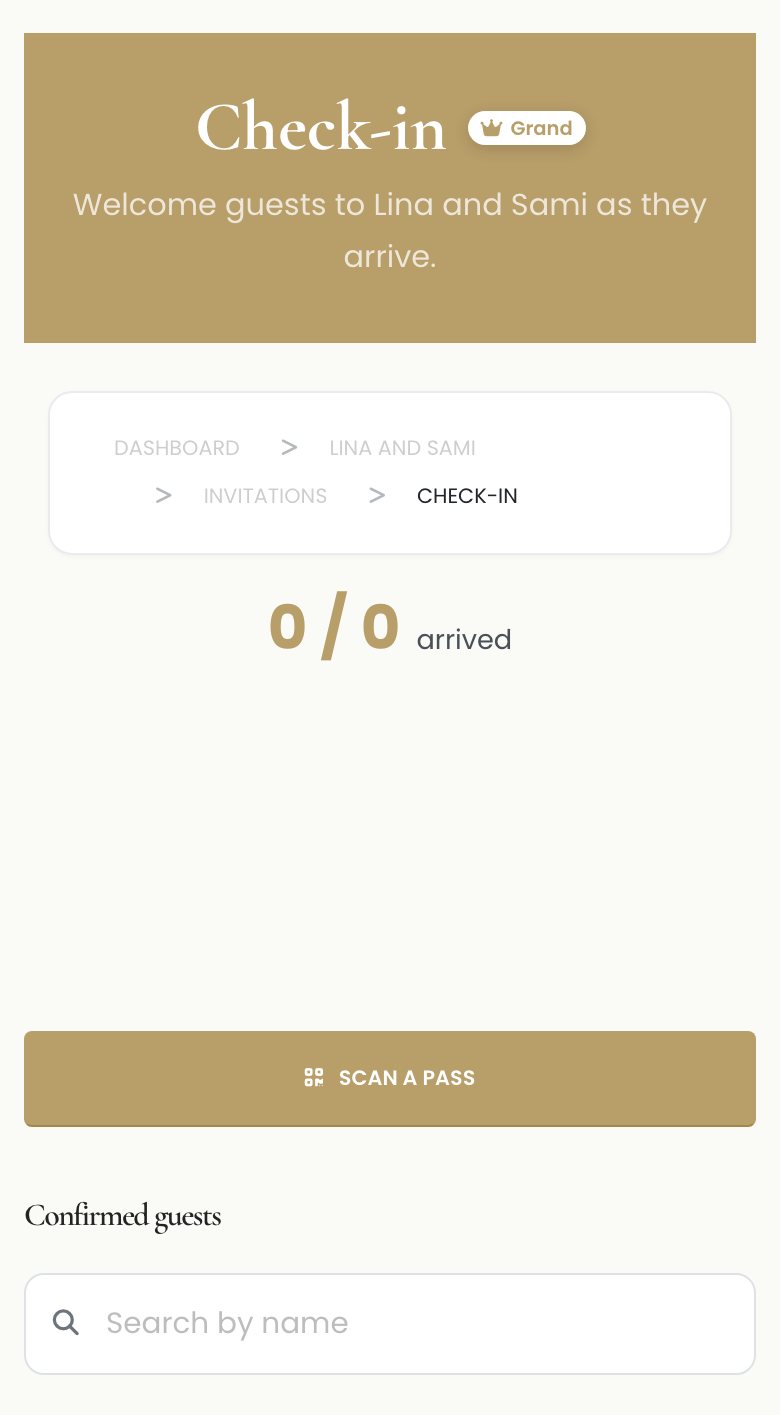
Your arrived count stays accurate in real time, with no paper list to lose or double-mark.
Make it your own
Most of the flow above has a dial you can turn. A few worth knowing:
- The RSVP deadline, the date the form stops accepting replies, so late responders know they need to hurry.
- Plus-ones, on or off, and the maximum each guest can bring, so your tables stay the size you planned.
- The invitation card, its design, your photo, and your colours, so it looks like your wedding and not a template.
- The languages you offer, so every guest reads their invitation and reply in a language they are comfortable in.
- Personal links or one shareable link, depending on how formal the event is.
For the guests who are not online
Not everyone lives on their phone, and that is fine. Print an invitation with its QR code for the relatives who prefer paper, or simply add their reply yourself when they tell you in person. Either way, you still end up with one accurate list instead of two.
Frequently asked questions
What does RSVP actually mean?
It comes from a French phrase that means "please reply." In practice it is the moment a guest tells you whether they are coming, so you can plan the seating, the food, and the count.
Do my guests need to download an app to RSVP?
No. They open a link in any browser and reply there. Nothing to install, which matters most for older relatives and anyone on an older phone.
Can I collect plus-ones and dietary choices at the same time?
Yes. Both are part of the RSVP, so they land in the same place as the reply, with no separate spreadsheet to reconcile.
Can guests reply in another language?
Yes. The invitation and the RSVP can be shown in each guest's own language, including Arabic laid out right to left, so nobody is guessing at a form they cannot fully read.
Is there a free version?
Yes. Laylaty is free for up to 40 guests, which covers a small celebration from the first invitation to the final headcount.
Ready to stop chasing replies?
Create your event, add your first few guests, and send an invitation everyone can answer in a tap.