

Planning a wedding is really two jobs wearing one dress. The first job runs for months. It is the long, quiet drift of small tasks, book the venue, choose the flowers, confirm the caterer, send the invitations, and it is the one that keeps you up at night because there is always one more thing you meant to write down and did not. The second job lasts a single day, but it is just as easy to fumble. It is the order of the day itself. What time do people arrive, when do the vows happen, when is dinner, when does the band start, and who needs to know all of that so it runs without you standing in a corner answering questions in your wedding dress.
Most couples try to hold both jobs in their heads, or spread across a notebook, a phone, and a few group chats. It rarely holds. As one bride put it, it is too easy to think you will deal with it later, and then it slips so far down the list it never happens.
Laylaty gives each job its own tool. A checklist for the months before, and a run sheet for the day itself. This guide walks through both, from the very start to a finished plan, and explains what each setting does and how to make it yours. Neither tool costs anything to use.
The short version
- The checklist is your running to-do list for the whole engagement. Add tasks, group them your way, and tick them off as the months pass.
- The run sheet is the timeline for the day. Each item has a time, and the list always sorts itself in time order, so the day reads top to bottom the way it will actually unfold.
- The checklist groups tasks by section, a label you choose, like Venue or six months out. The run sheet sorts by time and tags each item with a category, like Ceremony or Food and Drink.
- You can mark run sheet items as guest-visible so they appear on your wedding website, or keep them internal for your vendors and helpers.
- Both tools are free to use. Showing your run sheet to guests happens through the event website, which is a paid feature.
Before you start: create your event
Everything hangs off one event. If you have not made yours yet, that is the first step, and it takes a minute. Give it a name, usually the couple's names, pick the kind of celebration, and set the date. The date matters here, because the checklist counts down to it for you.
You can change any of this later, so start now and refine as plans firm up.
Part 1: The checklist, for the months before
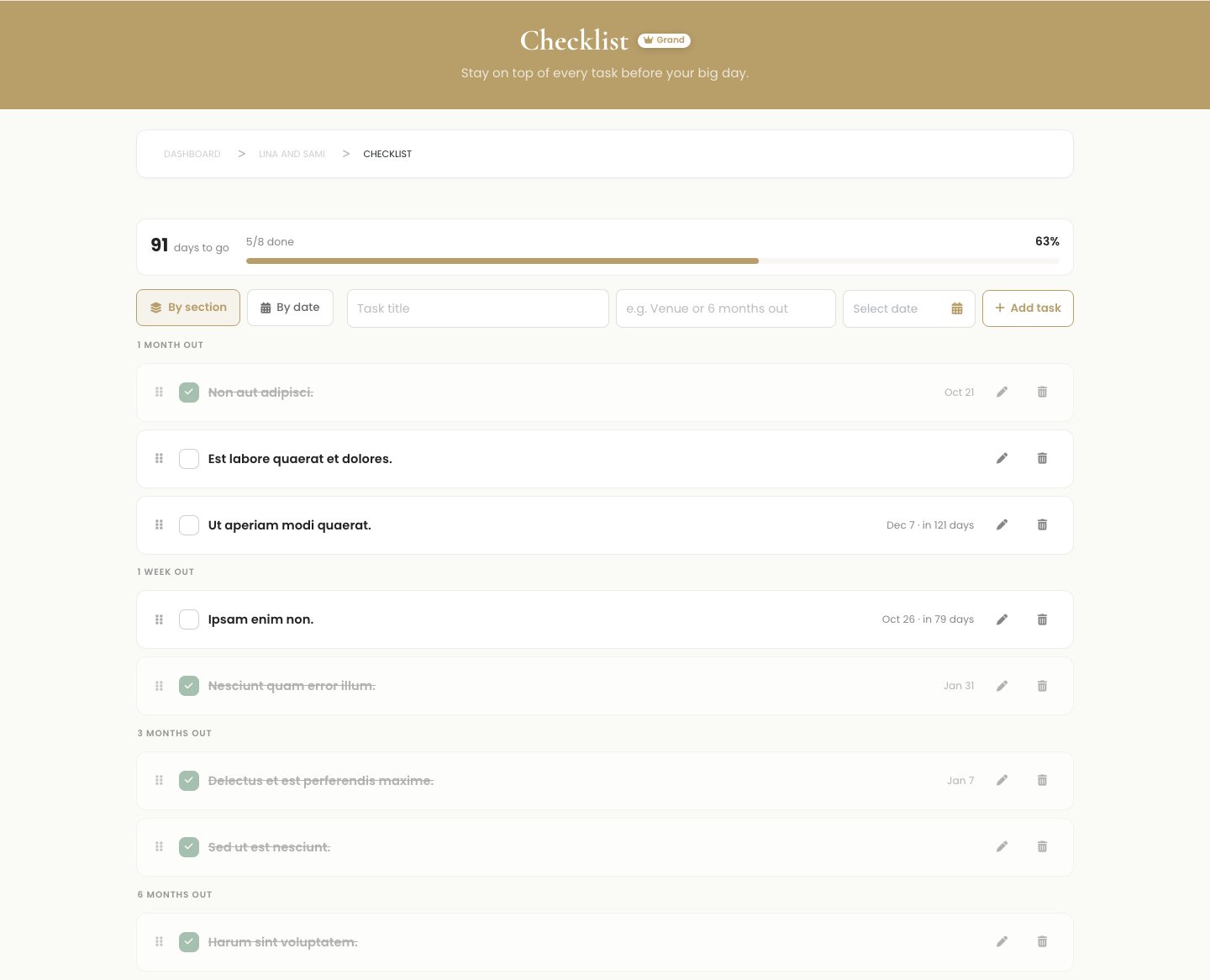
A checklist is exactly what it sounds like, a list of things to do that you tick off as you finish them. The difference between a checklist in an app and one on paper is that this one keeps score. It knows your wedding date, so it can tell you how many days are left, how much of your list is done, and which tasks are running late. Open your event and go to the checklist to find it.
Add your tasks
Adding a task is one line. Type what needs doing, and optionally give it a section and a due date, then add it. That is the whole thing. You do not have to fill in every field, a title on its own is a perfectly good task.

There is no need to build the whole list in one sitting. Add a handful now, come back and add more as new tasks occur to you, which they will, right up to the week of the wedding.
Organize by section
A section is a label you give a task so related tasks sit together. It is entirely yours to define. You can group by phase, like six months out or the final week, or by category, like Venue, Flowers, or Paperwork. Type whatever makes sense to you, and Laylaty remembers the sections you have used so you can reuse them with a tap.
You can look at your list two ways. By section gathers everything under the labels you chose, so all your Venue tasks sit in one place. By date ignores the labels and lines your tasks up by when they are due, so you see what is coming next regardless of which part of the wedding it belongs to. Switch between the two whenever you like, since they are just two views of the same list.
Tip
Group by phase rather than by category if you tend to feel overwhelmed. A section called this month is far less daunting to look at than one called Everything, and it keeps your eyes on the tasks that actually need you now.
Tick them off as you go
This is the satisfying part. When a task is done, tap its circle and it is marked complete. The progress bar at the top fills a little, the count of what is left drops, and the finished task settles quietly out of your way. You can reorder tasks by dragging them, edit a task if the plan changes, or delete one that no longer applies.
The point of all this is not the ticking, it is the not-forgetting. When every task lives in one list that counts down to your date and flags anything overdue, nothing important slips through the cracks, and you stop carrying the whole plan around in your head.
Part 2: The run sheet, for the day itself
The months are handled. Now the day. A run sheet is a minute-by-minute timeline of your wedding day, a plan of what happens and when, from the first arrival to the last dance. Caterers and planners have used run sheets for years, because a wedding day has a lot of moving parts and a lot of people who each only know their own piece. The run sheet is the one place where all of it lines up. Open your event and go to the run sheet to build yours.
Add an item to the timeline
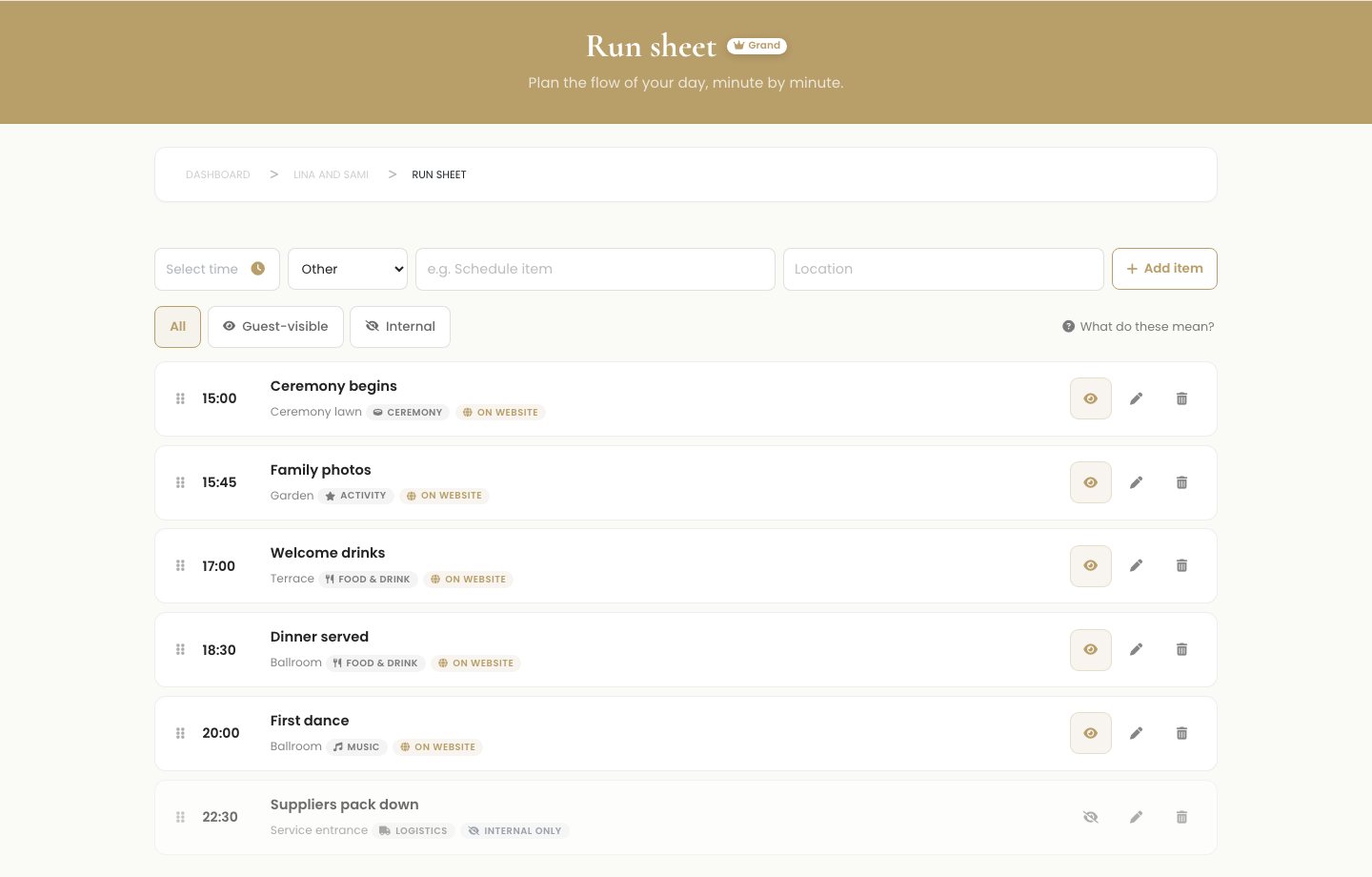
Each item on the run sheet has a time, a category, a short description of what happens, and, if it helps, a location. You might add fourteen thirty, Ceremony, Vows and ring exchange, at the garden terrace. Or eighteen hundred, Food and Drink, Dinner served, in the main hall. Add as many as you need, in any order you think of them.
Here is the part that makes a run sheet work. You do not have to keep the list tidy yourself. The run sheet always sorts by time. Add a nine in the morning item after you have already added an evening one, and it jumps to the top where it belongs. The timeline is always in the right order, so it reads exactly the way the day will happen. Items without a time yet sit together at the end, waiting for you to slot them in.
What a category is, and what it does
Each item gets a category, a simple label for the kind of moment it is. Laylaty gives you six: Ceremony, Activity, Food and Drink, Music, Logistics, and Other. The categories do two useful things. They tag each item so the timeline is easy to scan at a glance, and they set a sensible default for who can see the item.
That second part is worth understanding. Some moments are for everyone, and some are only for the people making the day run. So Ceremony, Activity, and Food and Drink start out guest-visible, because guests genuinely want to know when the vows are and when dinner is served. Music and Logistics start out internal, because a do-not-play song note or a vendor breakdown time is for your band and your planner, not your great-aunt. You can flip any item either way, the category only chooses the starting point.

Guest-visible or internal
Every item is either guest-visible or internal. An internal item stays with you and your team. A guest-visible item can appear on your wedding website, in the schedule your guests see, so they can follow along without asking you a hundred questions. Toggle the little eye on any item to move it between the two, and use the filter at the top to view all your items, just the guest-visible ones, or just the internal ones.
One honest note. Marking an item guest-visible is how you feed it to your wedding website, and the event website is a paid feature on Laylaty, part of the Essential plan and up. If you have a website, your guest-visible run sheet items flow straight into its schedule. If you do not, the run sheet still works beautifully as your own private plan for the day, and everything stays between you and your team.
Tip
Build the whole day first, internal and all, then go back and decide what guests should see. Keeping the setup times and vendor cues in your run sheet is exactly why it is so useful behind the scenes, and the visibility toggle means none of that ever reaches a guest by accident.
Make it your own
Both tools bend to how you actually think. A few dials worth knowing:
- Your own sections. Name the checklist sections whatever helps, by phase or by category, and reuse them across tasks.
- Two views of the list. Look at the checklist by section or by date, whenever one is more useful than the other.
- Times and order. On the run sheet, set a time and let the list sort itself, or leave an item untimed until you decide where it goes. Drag items to fine-tune the order of anything sharing a time.
- Categories and visibility. Tag each run sheet item, and choose for each one whether guests see it or not.
- More than one language. If your event is set up in more than one language, you can write each run sheet item's title and location in each of them, so the schedule on your website reads properly for every guest.
Planning from your phone
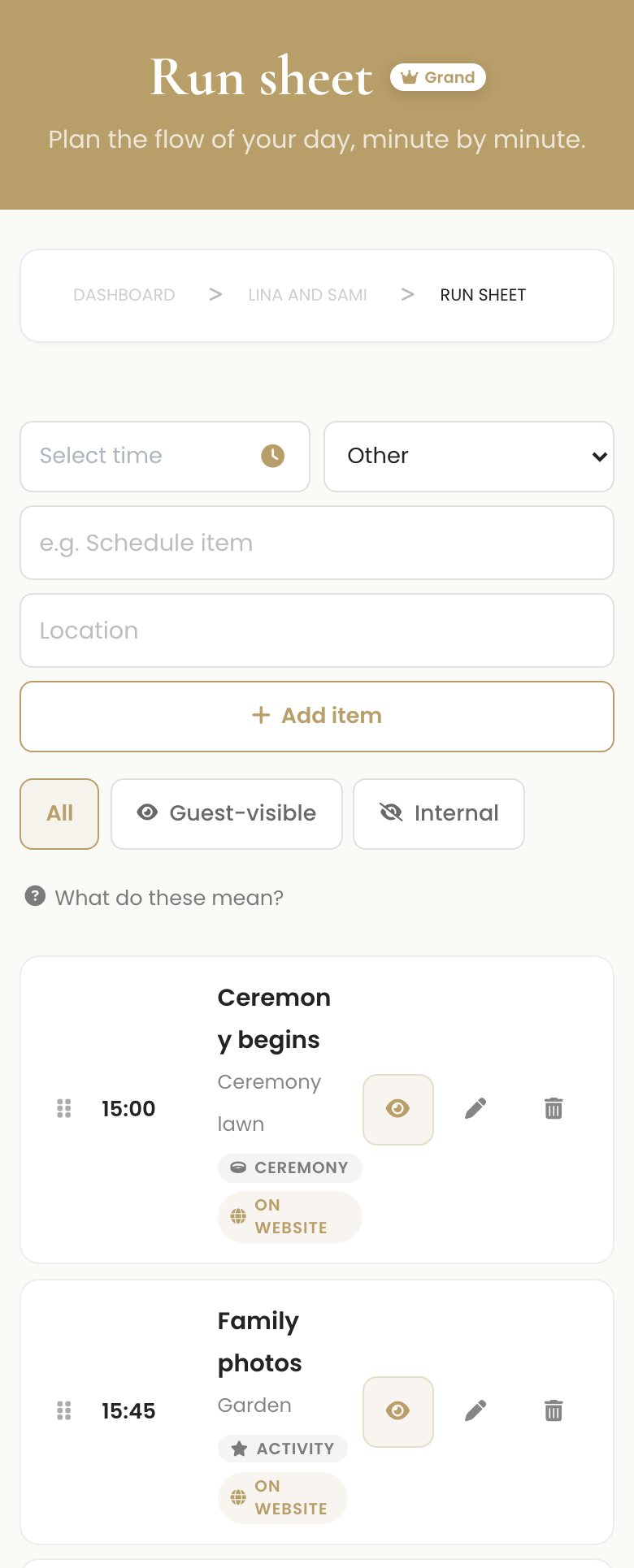
Both the checklist and the run sheet work just as well on a phone as on a laptop, which matters, because plenty of planning happens in spare moments, on the sofa or waiting for a coffee. Tick off a task the second it is done, add a run sheet item the moment a time is confirmed, all from the phone in your hand.
Frequently asked questions
What is the difference between the checklist and the run sheet?
The checklist is for the long stretch before the wedding, the tasks you tick off over weeks and months. The run sheet is for the single day of the wedding, the timeline of what happens and when. One helps you get ready, the other helps the day run smoothly.
Does the run sheet stay in the right order if I add things out of sequence?
Yes. The run sheet always sorts by time on its own, so an item you add out of order jumps to its correct place in the timeline. Items you have not given a time to yet gather at the end until you do.
Can I assign a task to my partner or a helper?
The checklist is a shared plan for the event rather than a list of personal assignments, so there is no per-person owner on a task today. Anyone you have invited to help manage the event sees and works from the same list. A simple workaround is to note the person's name in the task title or use a section per person.
Can my guests see my run sheet?
Only the items you choose. Each item is guest-visible or internal, and only guest-visible items can reach your guests. Those appear in the schedule on your wedding website, which is a paid feature. Anything marked internal stays private to you and your team.
Is any of this free?
Yes. Both the checklist and the run sheet are free to use. The only paid piece here is the wedding website, which is where guest-visible run sheet items are shown to guests. Laylaty itself is free for up to forty guests.
Can I write my run sheet in more than one language?
Yes. If your event uses more than one language, each run sheet item's title and location can be written in each of them, so the schedule reads correctly for every guest, including Arabic laid out right to left.
Ready to get it all out of your head?
Open your event, add a few tasks to the checklist, and start blocking out the day on the run sheet. The months and the day, both in one place, both counting down with you.