
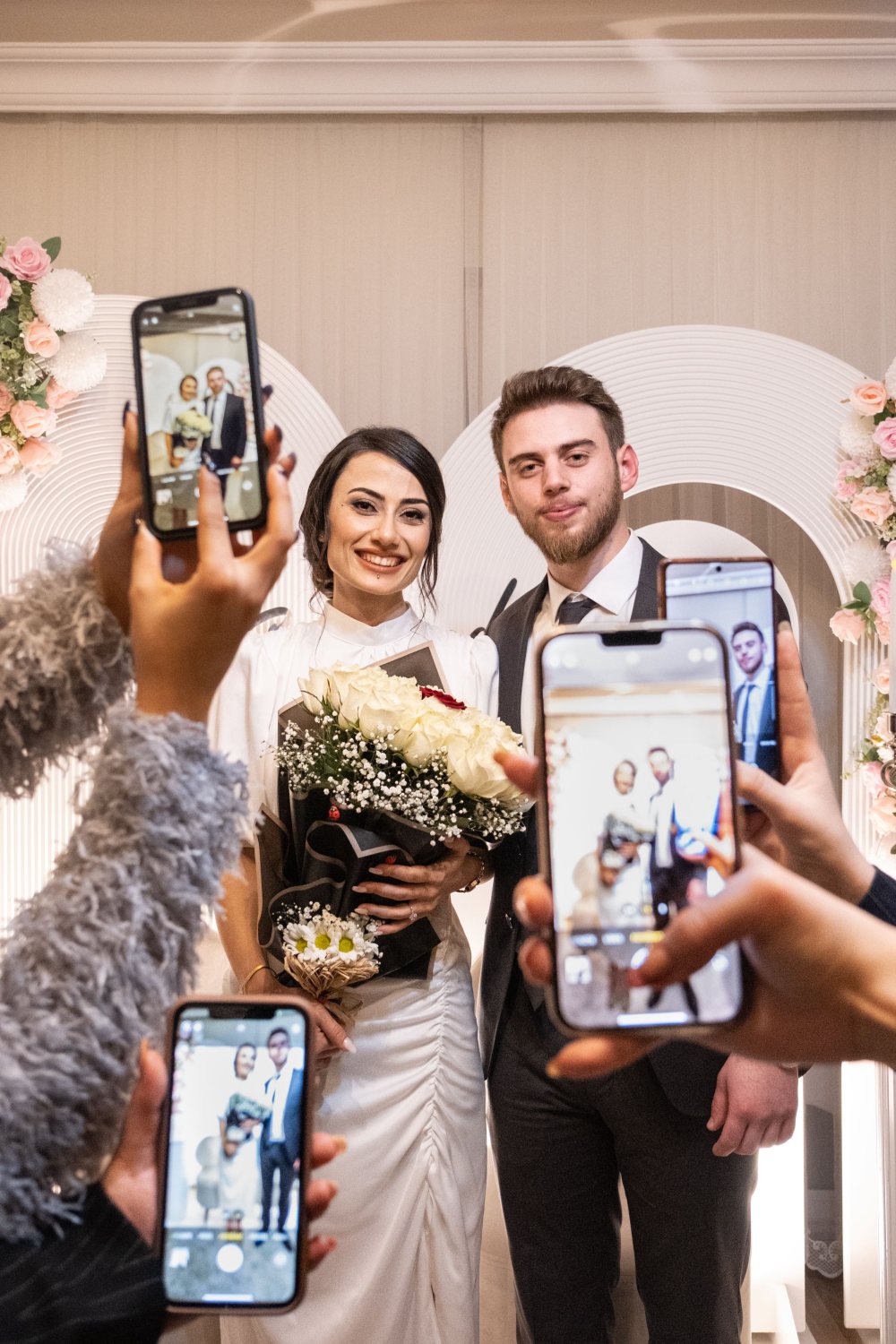
Your photographer will catch the first look, the vows, the first dance. What they cannot be in ten places for is everything else. The cousin crying quietly in the back row, the uncle who nailed the toast, the kids under the dessert table, the dance floor at midnight from three different angles. Every one of your guests is holding a small camera all night, and each phone has a few gems on it that nobody will ever think to send you.
The trouble is what happens after. A handful of people text you a photo or two, someone starts a WhatsApp group that goes quiet by the following weekend, and the rest of those moments simply stay on other people's phones forever. A memory wall fixes this by giving every guest one easy place to drop their photos and videos, so all of it lands with you instead of scattering.
This guide walks the whole thing end to end: what a memory wall is, turning it on, sharing it with your guests, how they upload from their phones, how you review what comes in, and how it all stays yours afterwards. It takes about ten minutes to set up.
The short version
- A memory wall is one shared page where your guests upload photos and videos from the day.
- Guests just open a link. No app to download, and no account to create.
- You share it with a link, a printable QR code, or an email to your guests.
- You review each upload before it shows, approving the keepers and hiding the rest.
- Uploads are bounded by your plan's storage, and your memories are kept safe, never auto-deleted.
- Almost every part is yours to tailor: who can upload, whether you review first, and who gets to see the gallery.
What a memory wall is
A memory wall is a single page for your event where guests share their own photos and videos from the celebration. Think of it as a shared album that everyone can add to, but only you control. Guests reach it through a link you send, add their photos in a few taps, and those uploads flow back to one place: your Memories dashboard, where you decide what happens next.
It is worth being clear about why this beats the usual scramble. A group chat buries photos under replies and forgets the guests who are not in it. A shared cloud folder asks people to log in, which most will not. The memory wall asks for nothing but a tap, so far more of the day actually reaches you.
Turn it on
Open your event and go to Memories. This is your home base for everything guests share: the running counts, the incoming uploads, and the settings. Open Settings, then switch on the memory wall. It starts off, so nothing is collected until you decide you want it.
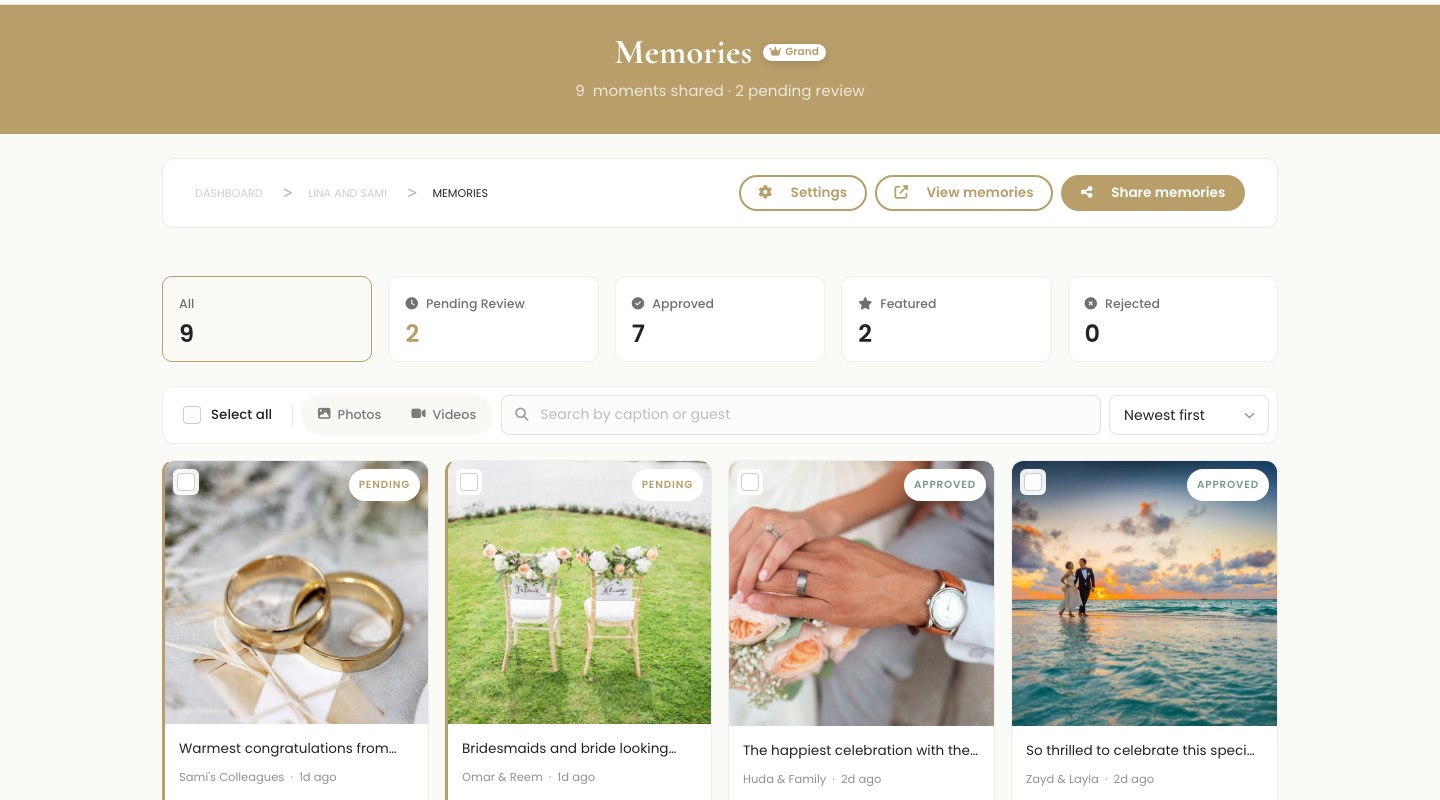
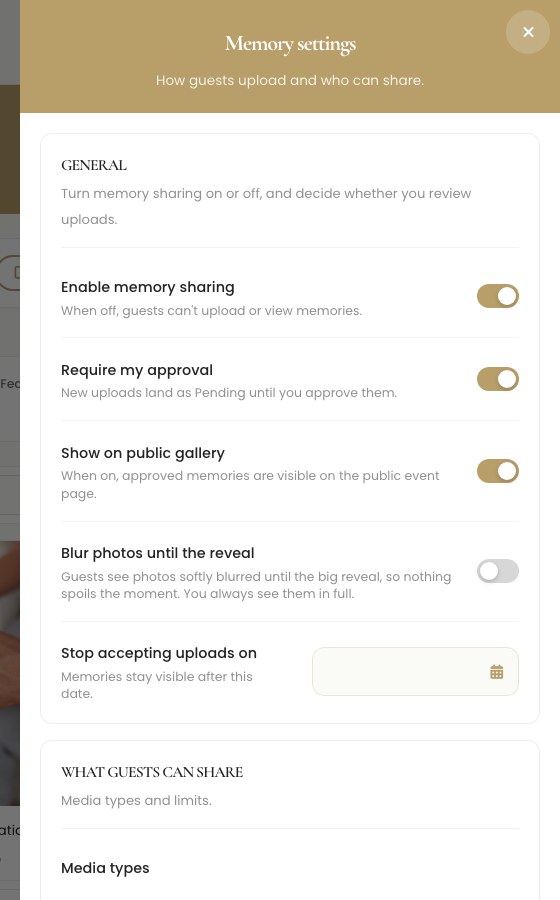
While you are in Settings, you will see a short list of choices. You can leave them at their sensible defaults for now and refine later. The two worth glancing at before you share are whether you want to review uploads before they appear, and who gets to see the finished gallery. We come back to both below.
Tip
Turn the memory wall on a day or two before the wedding, not the morning of. That way the link is ready to print on a card or a sign, and nothing is a last-minute task while you are getting dressed.
Share it with your guests
A memory wall only works if people can find it, so sharing is built to be effortless. From the Memories page, open Share and you have three ways to get the link out.
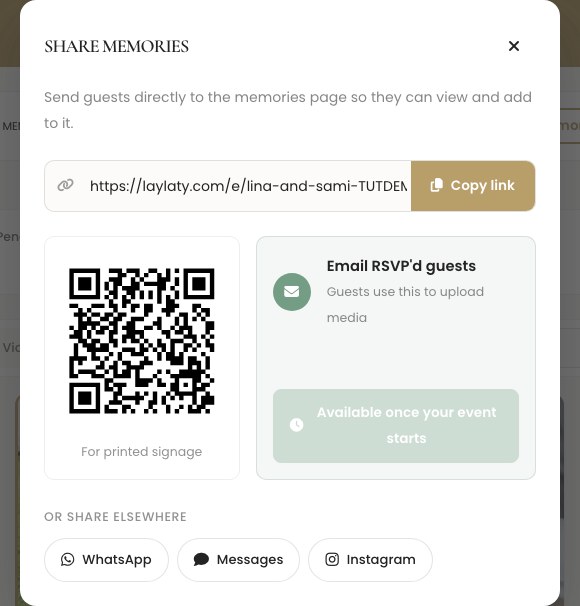
- Copy the link and send it your own way, over WhatsApp, a group text, or your event website.
- Print the QR code for the reception. A QR code is the little square barcode a phone camera reads. Stand one on each table or by the door and guests can reach the wall by pointing their camera at it, no typing required.
- Email your guests in one click. This sends the memory wall link to the guests who told you they are coming and have an email on file, so you are not chasing anyone down individually.
Tip
A little card on each table that says "Share your photos here" with the QR code works better than any announcement. People forget a toast-time reminder, but the card sits in front of them all night.
How your guests upload
This is the part guests actually touch, so it is built to ask as little of them as possible. They open the link and land on your memory wall, on their own phone. There is no app to install and no account to create. They tap to add photos, and that is nearly the whole story.
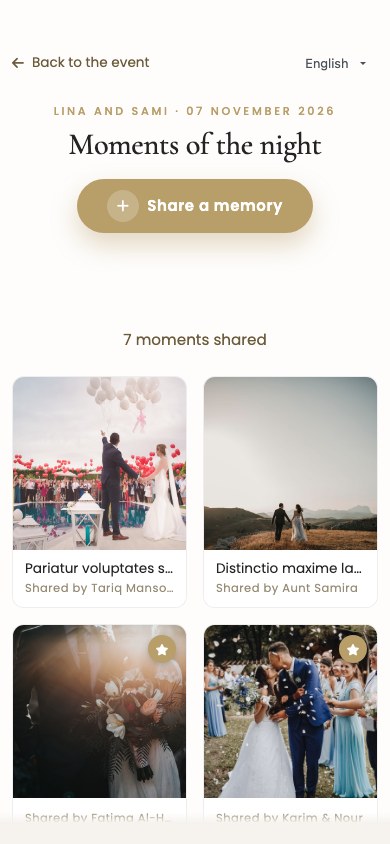
They can take a photo or short video right there with the camera, or choose several from their library at once. Before they send, they can add their name and a caption if they like, though both are optional, so a shy guest can still share without a fuss.
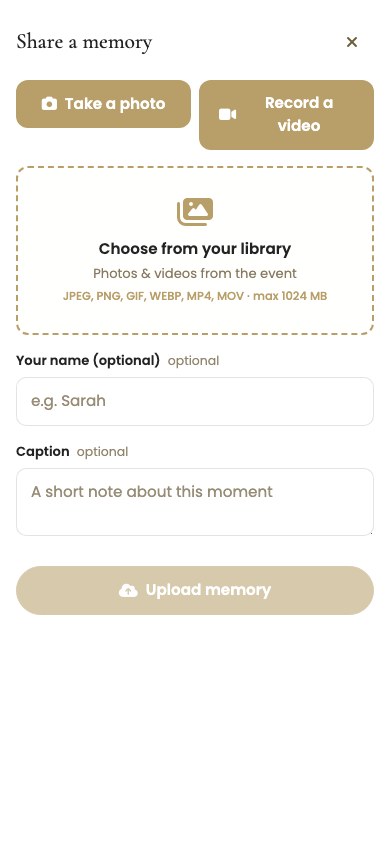
The moment they upload, they see a warm thank-you, so they know it went through and can get back to the party. That small confirmation matters more than it sounds. It is the difference between "I think I sent it" and knowing it is done.
Review what comes in
By default, nothing a guest uploads appears in public until you say so. This is moderation, which simply means you get to look at each upload first, approve the ones you want to keep, and quietly hide anything you would rather not show. Your Memories page keeps a Pending pile so you always know what is waiting for a look.
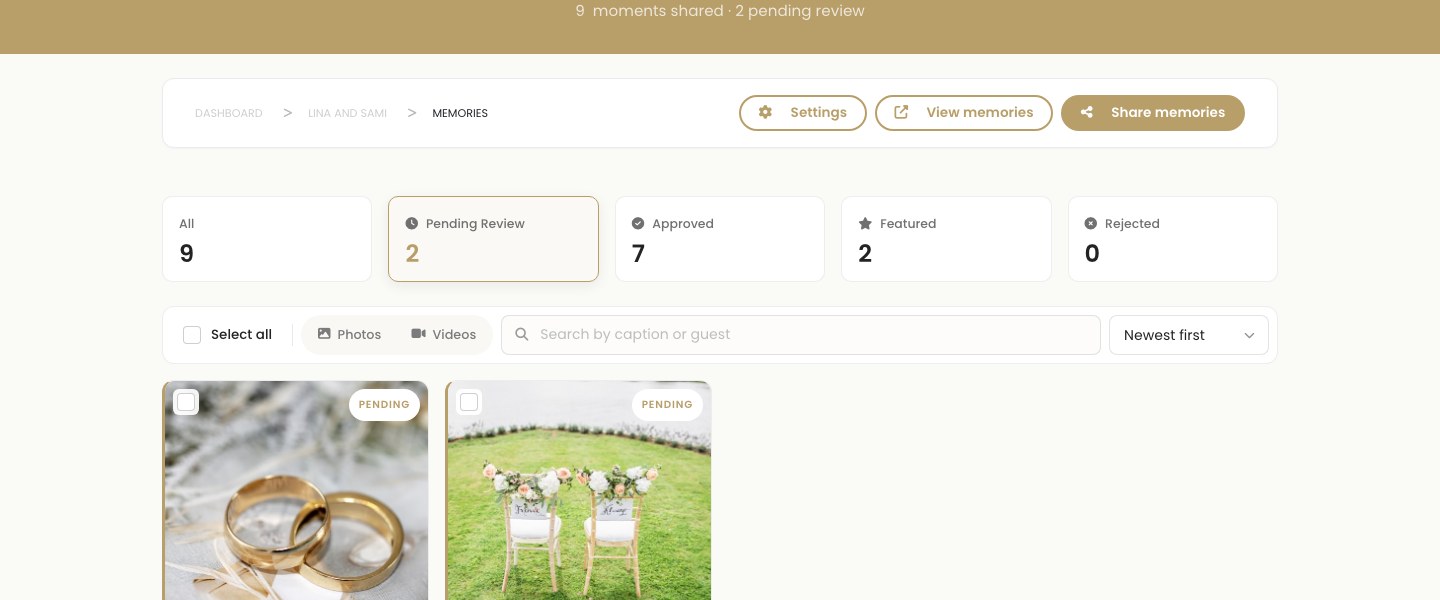
Reviewing is quick. Tap a photo to see it full size, then approve it or hide it. Hiding is gentle and reversible: a hidden upload moves to a Rejected pile and stays there, so you can bring it back later if you change your mind. Nothing is lost by hiding it. You can also approve or hide several at once when a batch comes in after the dancing, and feature your favourites so they rise to the top of the gallery.
Your own uploads skip the queue and appear straight away, since you are the host. And if you trust the crowd and would rather everything go live instantly, you can turn reviewing off in Settings, so uploads appear the moment they arrive.
Tip
Leave reviewing on for the wedding itself, then loosen it for the honeymoon phase if you like. Late-night uploads are the ones most worth a quick glance before they go public.
Storage, and why uploads are finite
It helps to know how the space works, because it is honest and simple. Storage is the room your event has for all its photos and videos, measured in gigabytes. Every plan includes an amount of it, and your guests' uploads count toward that same space. This is why we never promise "unlimited uploads." Real files take real room, so the honest limit is your storage, shown on our plans as "Up to your storage."
Here is the part couples appreciate most. If your guests are generous and you reach your storage, nothing gets thrown away. The extra photos and videos are kept exactly where they are. On the public gallery they show softly blurred with a small lock, so the wall stays tidy, but you still see every one of them in full on your own dashboard. When you free up some space, or move to a plan with more storage, the locked ones simply unlock. No deadline, no deletion, no lost memories.
Who gets to see the gallery
There are two separate questions here, and keeping them apart makes the settings easy.
The first is who can see everyone's photos. With public display on, approved uploads appear in a gallery that all your guests can browse, which turns the wall into a shared album for the whole party. With it off, the page becomes a quiet drop box: guests can still add their photos, but they only send them to you, and there is no public gallery to scroll. Some couples love the shared feed, others want the memories to land privately first. Both are one toggle.
The second is who can reach the page at all. You can leave it open to anyone with the link, or protect it with an access code so only the people you gave the code to can get in. When the wall is protected, the link you share and the QR code you print already carry the code, so your guests never have to type anything.
Keeping your memories
Long after the day, your memory wall stays put. The photos and videos your guests shared are kept safe in one place, so you are never digging through old group chats to find them. You can revisit the gallery whenever you like, open any photo or video at full size, and save the ones you love to keep forever. Nothing expires quietly in the background.
If you also have an event website with Laylaty, you can show a memories section right on it, so visitors see the shared album alongside the rest of your day. That is a website feature, so it lives on the plans that include the event website, but the memory wall itself is part of your event from the start.
Make it your own
Most of the flow above has a dial you can turn. A few worth knowing:
- Who can upload: allow anonymous guests, or ask everyone to add their name first, so you always know who shared what.
- Reviewing on or off: review each upload before it appears, or let everything go live instantly if you trust the crowd.
- Public display: a shared gallery everyone can browse, or a private drop box that sends photos only to you.
- Photos, videos, or both: decide what guests may share, so a photos-only wall stays exactly that.
- A gentle reveal: keep the gallery softly blurred until a moment you choose, so nothing spoils the surprise before you have seen it first.
- A closing date: stop new uploads after a date you pick, once the day is well and truly over.
Frequently asked questions
Do my guests need to download an app or make an account?
No. They open the link in any phone browser and upload right there. Nothing to install and nothing to sign up for, which matters most for older relatives and anyone on an older phone.
Can guests upload videos, not just photos?
Yes. Guests can share short videos as well as photos, and you can choose to allow both, photos only, or videos only.
Will I see uploads before my guests do?
Yes, if you keep reviewing on, which is the default. Everything a guest uploads waits in your Pending pile until you approve it, so you always get the first look. You can turn this off if you would rather uploads appear instantly.
What happens if we run out of storage?
Nothing is deleted. Any uploads beyond your storage are kept in full for you and simply show blurred and locked on the public gallery until you free up space or move to a plan with more room. Then they unlock on their own.
Can I stop people from finding the gallery?
Yes. You can protect the memory wall with an access code, so only guests you gave the code to can open it. The link and QR code you share carry the code for them, so they never have to type it in.
Is the memory wall free?
The memory wall is part of your event on every plan. What varies between plans is how much storage you have for everyone's photos and videos, and pricing is a one-time cost per event, with tax shown at checkout.
Gather the whole day, not just the highlights
Turn on your memory wall, print a little card with the QR code for your tables, and let your guests hand you the moments your photographer could never be in the room for. Set it up once, and the day comes back to you from every angle.