

There is a small heartbreak that hides inside a lot of weddings. You buy a beautiful guestbook, you set it on a table by the door, and then the day happens. In the rush of arrivals and hugs and photos, half your guests walk straight past it. The ones who do stop write "Congrats! x" because there is a line forming behind them. A few weeks later you open the book, and it is mostly blank, and the messages that are there are lovely but rushed. The people whose words you most wanted to keep, the aunt who could not travel, the friend who left early, are simply not in it.
A digital guestbook fixes the two things that go wrong with the paper one. It reaches the guests who never made it to the table, and it saves you every message somewhere you will not lose it. Instead of a book by the door, your guests open a link on their phone and leave a note, or even record a short voice message, in their own words and their own time. This guide walks the whole thing, from switching it on to reading the messages back long after the day. It takes about ten minutes to set up.
The short version
- A digital guestbook is a page where guests leave you a written note or a short voice message. In Laylaty this page is called your wishes wall.
- Guests do not download an app or make an account. They open a link, write or record, and send.
- New wishes wait for your approval by default, so you decide what appears before anyone sees it.
- You choose whether guests see everyone's messages on a shared wall, or whether the notes come only to you.
- Almost everything is yours to set: written notes, voice notes, or both, whether guests can post without a name, a closing date, and who can reach the page.
First, a few plain words
Before we start, three terms you will meet along the way.
A wishes wall is your digital guestbook: a single page that gathers every message your guests leave. It lives at its own link, so you can share it on its own, without needing a full event website.
A wish is one message from one guest. It can be a written note they type, or a voice message they record right there on their phone. A guest can leave more than one.
Moderation simply means you get to review each wish before it appears. New messages arrive marked as pending, and nothing shows up publicly until you approve it. This keeps the wall warm and free of anything you would not want your grandmother to read.
Before you start: your event and what is included
Everything hangs off your event, so if you have not created one yet, do that first. Give it the couple's names, choose the kind of celebration, and set the date. It takes a minute.
The digital guestbook is included on every plan, including the free one, which covers up to fifty wishes. That is plenty for a small celebration. If you expect more messages than that, or a lot of voice notes, the larger plans raise the count. One honest note on voice messages: audio takes up storage, and storage is finite on every plan, so a wall that is mostly long voice recordings will use it up faster than one of written notes. It is generous, not bottomless.
Step 1: Turn on your wishes wall
Open your event and go to Guest Wishes. This is your control room for the guestbook: your settings on one side, and every message guests have left on the other. At the top you will find a single switch to turn the wall on.
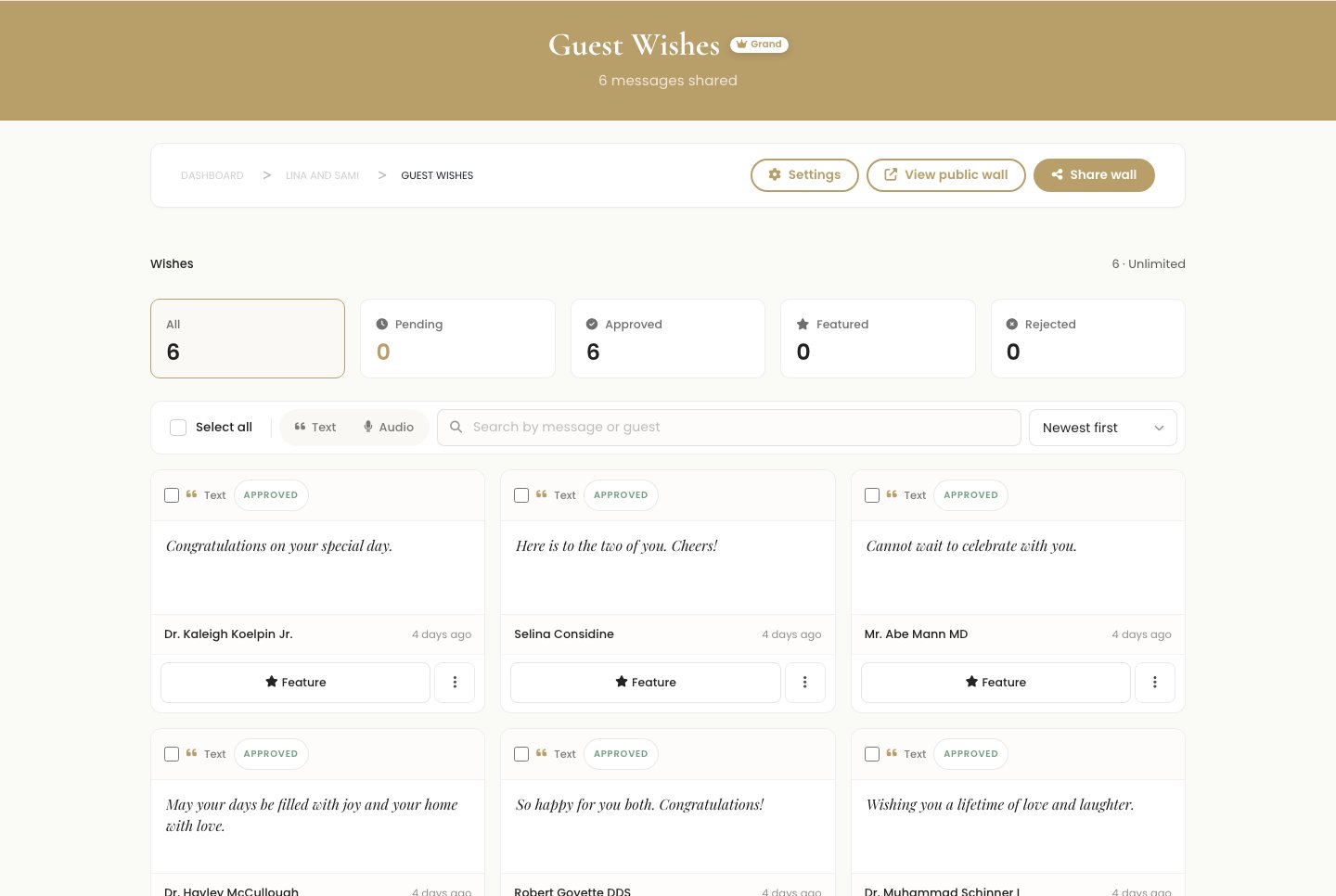
While the wall is off, guests who open the link see a gentle "not open yet" message rather than a broken page, so it is safe to switch on early and set the rest up at your own pace.
Step 2: Set it up the way you want
Just below the switch are the choices that make the guestbook yours. None of them are permanent, so you can change your mind at any point.
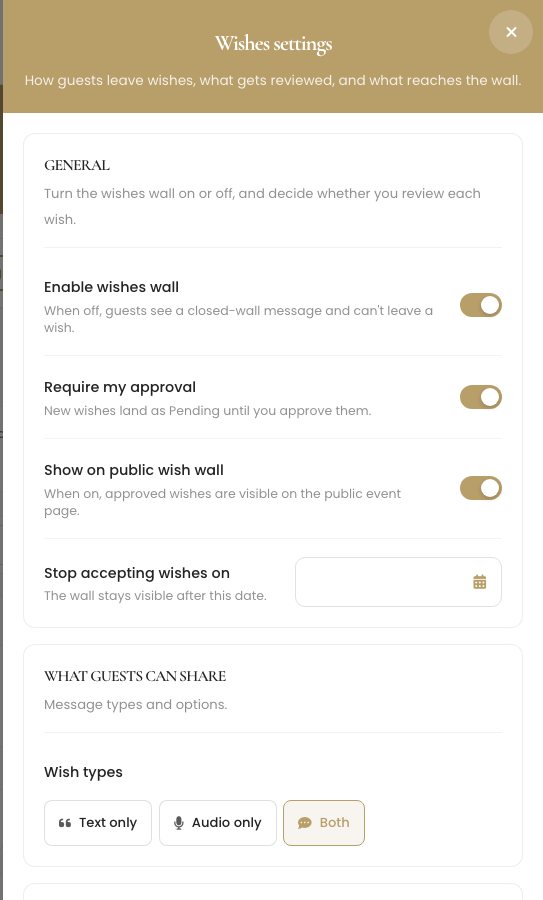
Here is what each one does, and why you might want it.
- Require my approval. On by default. New wishes land as pending and wait for you, so nothing appears until you have read it. Leave this on for peace of mind. Turn it off only if you want messages to appear the instant a guest sends them.
- What guests can share. Choose written notes, voice messages, or both. Both is the warm default, since a voice note from someone who could not attend is a keepsake a typed line cannot match.
- Allow anonymous wishes. On by default. A guest can leave a note without typing their name. Turn it off if you would rather every message be signed.
- Show on the public wall. This decides whether guests see one another's messages, or whether the notes come only to you. More on that choice in a moment.
- Stop accepting wishes on. An optional closing date. The wall stays visible after it, but new messages can no longer be added, which is handy once you have collected the ones you want to keep.
Tip
Leave "require my approval" on, at least until the messages start flowing. It costs you a single tap per wish, and it means a stray link that gets forwarded around can never put something unwanted on your wall.
Step 3: Share the link with your guests
A guestbook only fills up if people can find it. Your wishes wall has its own web address, and you share it however you like: in a group chat, in a text, in your invitation, or printed on a little card at the reception next to a QR code, the small square barcode a phone camera can read.
If you want to keep the page to invited guests only, you can protect it with an access code. Guests enter the code once to reach the wall, and you share that code, or the ready-made protected link, alongside the invitation. This keeps strangers and gate-crashers out of your messages, which matters if you would rather the wall not turn up when someone searches your name.
Tip
Print the link as a QR code on a small sign at the reception, right where the paper guestbook used to sit. Guests scan it, leave a note or a voice message on the spot, and you catch the people who are actually in the room, as well as everyone who is not.
Step 4: How your guests leave a wish
This is the part that makes people smile. Your guest opens the link on their phone. There is nothing to download and no account to create. They tap "Leave a wish," and they can either type a message, or tap to record a short voice message right in the browser, up to a few minutes long. If you allowed anonymous wishes, they can post without giving a name, or add their name so you know who it was from.
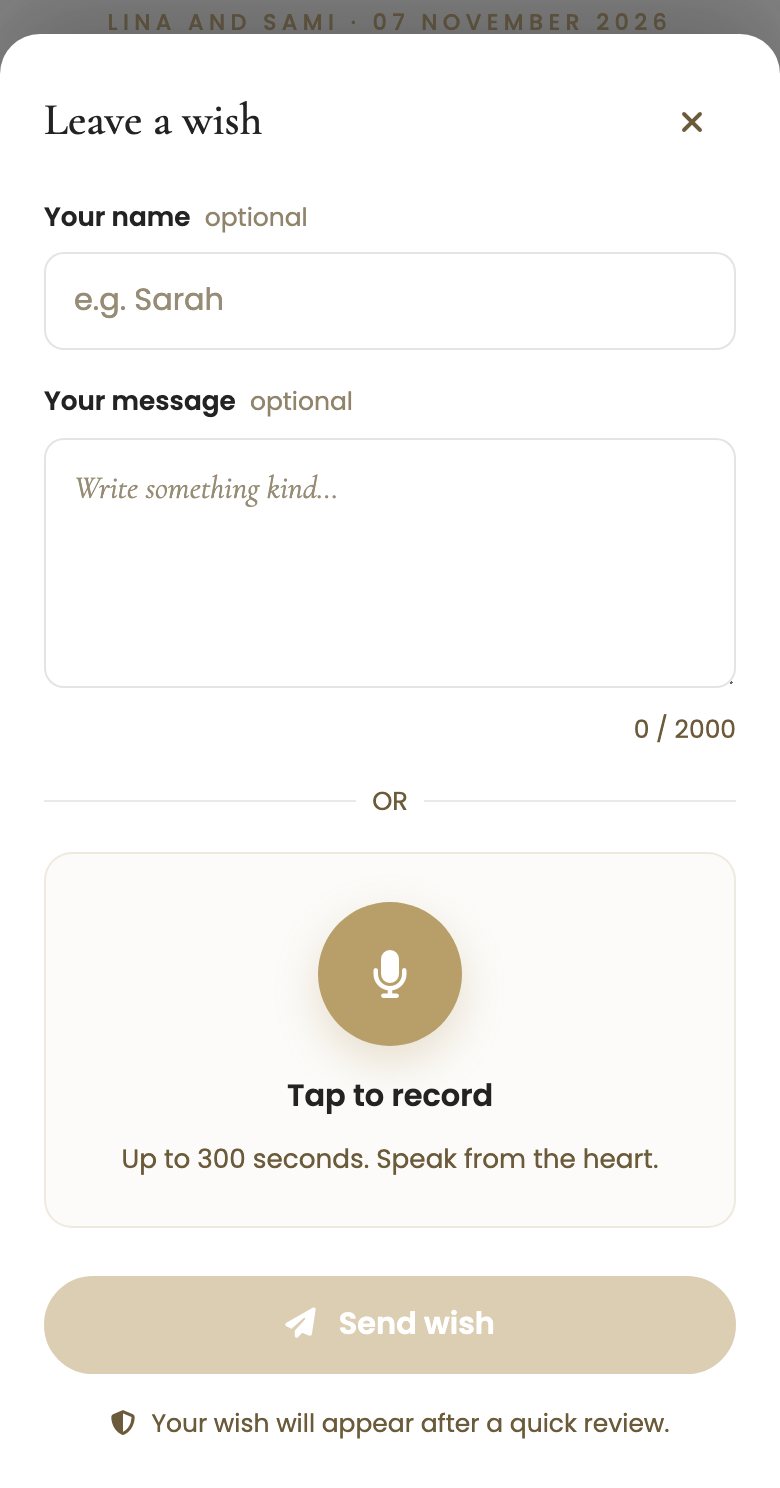
The voice option is worth dwelling on. A written note is lovely, but a recording carries a voice you may not hear again the same way, a grandparent's blessing, a best friend's laughter halfway through their sentence. Guests who cannot attend at all can still leave one from wherever they are, so the people missing from the room are not missing from your guestbook.
The moment a guest sends their wish, they see a warm confirmation. If you kept approval on, it tells them their message will appear after review, so nobody is left wondering whether it went through.
Step 5: Review and approve the messages
Back on your Guest Wishes page, every new message arrives in the pending list, waiting for you. You read each one and approve it, and only then does it appear on the wall. If something is not right for the day, a spam link or an in-joke that would not land, you can reject it, and it simply never shows. You can also feature the messages you love most, so they rise to the top for everyone to see first.
Reviewing takes seconds, and you can do it on your phone between other things. Approve the ones you want, feature a favourite or two, and the wall takes shape exactly as you would like it. If you ever change your mind about a message you approved, you can send it back to pending, so nothing is ever locked in.
Public wall or private keepsake: your choice
This is the one setting worth thinking about, because it changes the whole feel of the guestbook.
With the public wall on, approved messages appear on a shared page that every guest can read. It becomes a living wall of love, where guests scroll through one another's notes, play a voice message, and feel part of something together. This is the joyful, communal version, and it is wonderful at a reception where people are passing the link around.
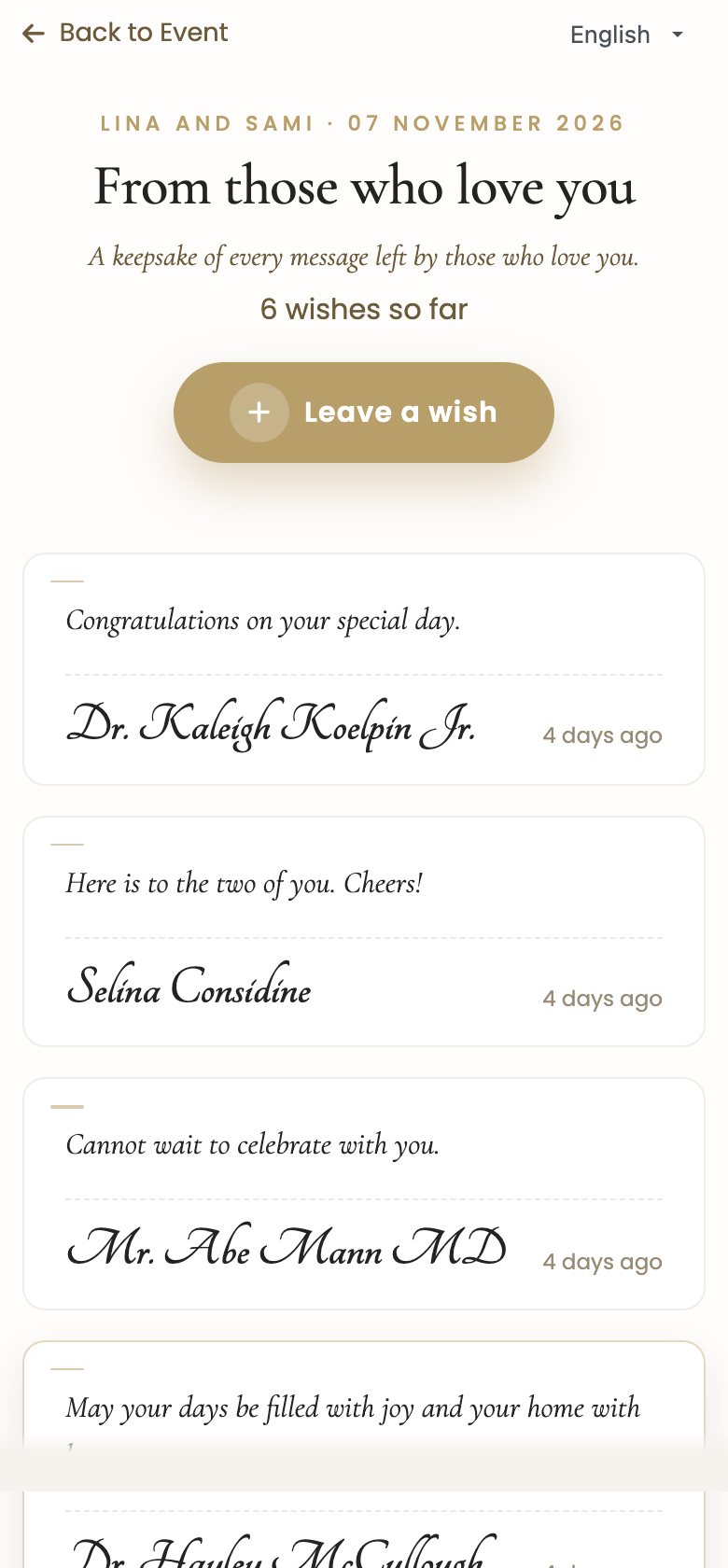
With the public wall off, guests can still leave you a wish, but they do not see anyone else's. Each message comes quietly to you alone. This is the private version, closer to a sealed box of letters than a noticeboard, and some couples prefer it, especially when the notes are heartfelt and personal. Either way, you keep every message. The only difference is who else gets to read them.
Keeping the messages after the day
Here is the quiet reward. The paper guestbook goes in a drawer and yellows. Your digital guestbook stays with your event, where you can open it whenever you like. Every approved note and every voice message is there, ready to read on a quiet anniversary evening a year, or ten years, from now.
If you set a closing date, the wall stays visible after it, so the messages remain readable long after new ones stop coming in. Nothing you approve disappears on its own. The only messages that ever leave are the ones you choose to delete yourself.
Make it your own
Almost every part of the guestbook has a dial you can turn, and you will find them all on the Guest Wishes settings.
- Written notes, voice messages, or both, so the guestbook matches the kind of keepsake you want.
- Approval on or off, depending on whether you want to review messages or let them appear instantly.
- Anonymous posting on or off, so guests can leave a note unsigned, or every message carries a name.
- A public shared wall, or private notes to you alone.
- An access code, so only guests with the code can reach the page.
- A closing date, so the wall stops taking new messages once you have what you want.
- The order on the wall, newest first, or your featured favourites first.
For the guests who are not online
Not everyone lives on their phone, and that is fine. Sit with an older relative for a moment and record their voice message for them, or type the words they dictate. Their blessing lands in the same place as everyone else's, in your one guestbook, in their own voice or their own words. You end up with a single, complete collection rather than a book with the most important people missing from it.
Frequently asked questions
What is a digital guestbook, exactly?
It is a page where your guests leave you a message, either a written note or a short voice recording, from their own phone. In Laylaty it is called your wishes wall. It does the job of a paper guestbook, and it also reaches the guests who never make it to the table, or who cannot attend at all.
Do my guests need an app or an account?
No. They open a link in any browser, write or record, and send. There is nothing to install and no sign-up, which matters most for older relatives and anyone on an older phone.
Can guests leave a voice message, not just text?
Yes. You choose whether your guestbook accepts written notes, voice messages, or both. A voice message is recorded right in the browser, and guests who cannot attend can leave one from anywhere.
Can I read every message before it appears?
Yes, and this is on by default. New wishes arrive as pending and wait for your approval, so you decide what appears on the wall. You can also feature your favourites, or reject anything that is not right.
Can guests post without giving their name?
That is up to you. Anonymous wishes are allowed by default, so a guest can leave a note unsigned, but you can turn that off if you would rather every message be signed.
Do the messages stay after the wedding?
Yes. Everything you approve stays with your event for you to revisit whenever you like. A note on voice messages, since they are audio, they use your plan's storage, which is generous but finite, so a wall of long recordings fills it faster than one of written notes.
Is there a free version?
Yes. The digital guestbook is included on the free plan, which covers up to fifty wishes, enough for a small celebration from the first message to the last.
Ready to keep every word?
Turn on your wishes wall, share the link, and give your guests a guestbook they can reach from anywhere, in writing or in their own voice. Then keep every message, long after the flowers have gone.